
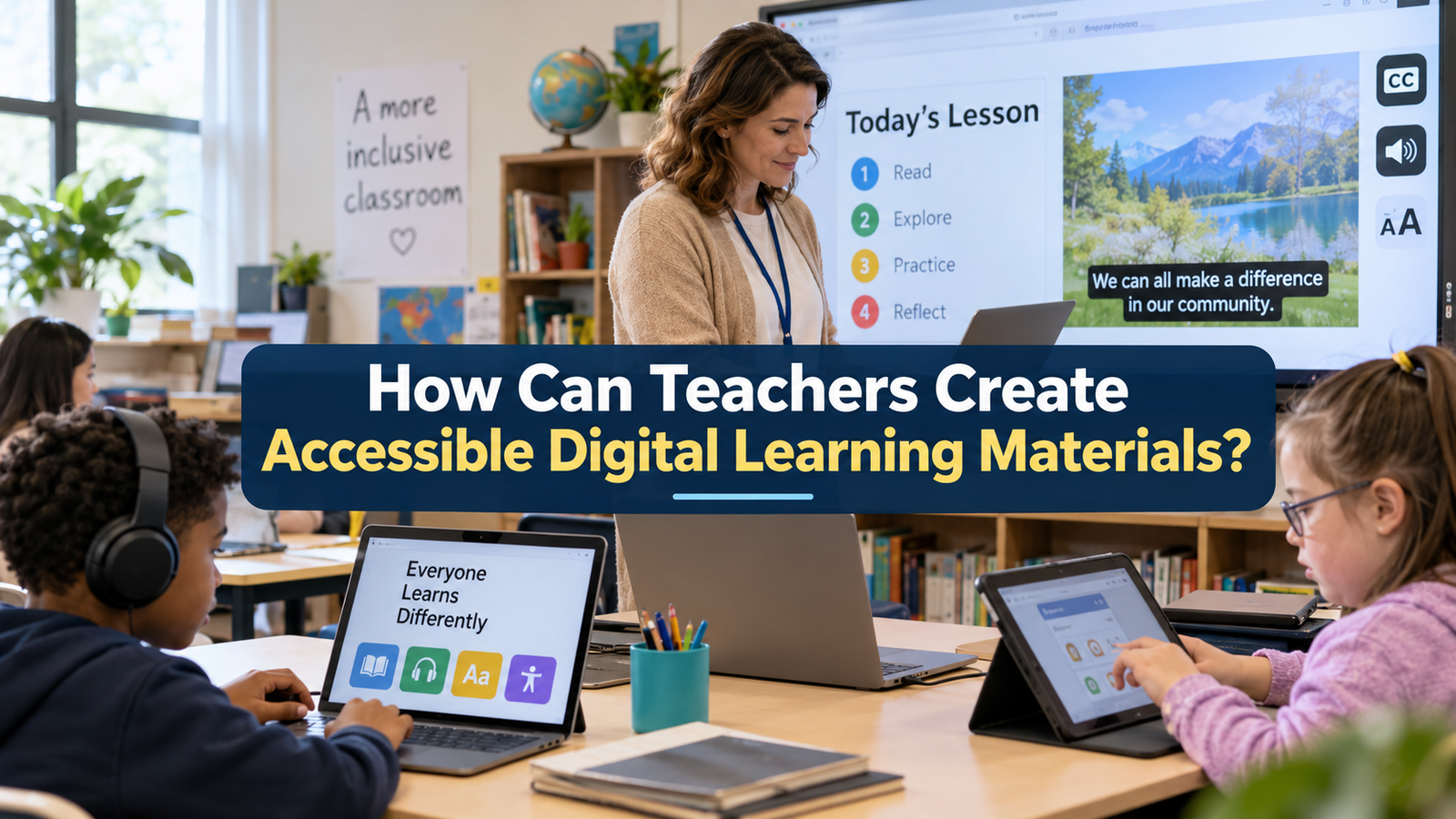
Digital learning has become an important part of modern education. Teachers now use online presentations, educational videos, digital textbooks, worksheets, and learning platforms to support classroom teaching. These resources make lessons more interesting and allow students to access educational content from different locations. However, digital materials are not equally accessible to every student.
Some students experience difficulties because of visual impairments, hearing problems, learning disabilities, limited technology skills, or unreliable internet connections. Others may struggle with complicated language, confusing layouts, or digital resources that do not work properly on their devices.
This is why creating accessible digital learning materials is essential. Accessible educational content allows students with different abilities and learning needs to understand lessons, participate in activities, and complete assignments without unnecessary barriers.
Teachers do not always need expensive software or advanced technical knowledge to improve accessibility. Simple decisions about text, images, colors, navigation, and content organization can make a significant difference.
Understanding how to create accessible digital learning materials helps teachers build inclusive classrooms where every student has a fair opportunity to learn.
What Are Accessible Digital Learning Materials?
Accessible digital learning materials are educational resources designed so that students with different abilities can access, understand, and use them effectively.
These materials may include digital documents, online textbooks, educational videos, presentations, quizzes, classroom websites, and interactive learning activities.
For example, a student with limited vision may use a screen reader to listen to written content. A student with hearing difficulties may depend on captions to understand an educational video. Another student may need clear instructions and simple navigation to complete an online assignment.
Accessible resources consider these different needs during the design process.
The main purpose of digital accessibility in education is to remove unnecessary obstacles that prevent students from participating in learning activities.
When educational content is accessible, students can focus more on understanding the subject and less on overcoming technical difficulties.
Why Is Digital Accessibility Important in Education?
Digital accessibility supports equal learning opportunities.
Every classroom contains students with different strengths, abilities, and learning preferences. Some understand written explanations easily, while others benefit from pictures, audio, or practical demonstrations.
If digital materials are designed for only one type of learner, some students may struggle to participate.
Accessible educational resources help reduce these differences by offering information in flexible formats.
Accessibility also improves student independence. Learners can review lessons, complete assignments, and explore educational resources with less assistance.
Another benefit is improved classroom participation. When students can access the same educational content, they are more likely to contribute to discussions and activities.
Digital accessibility is therefore not simply a technical requirement. It is an important part of creating a supportive and inclusive learning environment.
1. Use Clear and Simple Language
One of the easiest ways to create accessible digital learning materials is to use language that students can understand.
Complicated sentences, unfamiliar terminology, and lengthy paragraphs can make learning difficult.
Teachers should explain concepts using clear vocabulary and direct sentences.
For example, instead of writing a long scientific explanation filled with difficult terms, a teacher can introduce the basic idea first and gradually explain more advanced details.
Important educational terms should still be included, but their meanings should be explained.
Short paragraphs also improve readability because students can process information in smaller sections.
Teachers should consider the age, educational level, and language abilities of their students when preparing digital resources.
Clear language benefits students with reading difficulties, students learning in a second language, and learners who need additional time to understand information.
2. Choose Readable Fonts and Appropriate Text Sizes
The appearance of written content plays an important role in digital accessibility.
Teachers should select fonts that are easy to read on computers, tablets, and mobile phones.
Common fonts such as Arial, Calibri, and Verdana are suitable choices for many educational documents.
Decorative fonts may look attractive, but they can make reading more difficult, especially when used in long paragraphs.
Text size is equally important.
For many digital documents, a body text size of around 12 to 14 points provides a useful starting point. Online materials may need larger text depending on the screen and layout.
Students should also be able to enlarge text without losing access to important information.
Teachers should avoid placing too much text on a single presentation slide.
A clean layout with suitable spacing helps students concentrate on the lesson rather than struggling to read the content.
3. Maintain Good Color Contrast
Colors can improve the appearance of digital learning materials, but they must be selected carefully.
Poor color contrast makes text difficult to read.
For example, light yellow text on a white background may be almost invisible to some students.
Dark text on a light background is often easier to read, although other combinations can also work when sufficient contrast is maintained.
Teachers should avoid using color as the only method of communicating important information.
For example, an online quiz should not identify correct and incorrect answers using green and red colors alone.
Labels, symbols, or written explanations should also be provided.
This approach supports students with color vision deficiencies and makes information clearer for everyone.
Teachers can use contrast checking tools to evaluate whether their chosen colors are suitable for accessible educational content.
4. Add Alternative Text to Educational Images
Images are widely used in digital teaching.
Teachers include photographs, illustrations, diagrams, charts, and educational graphics to explain concepts.
However, students who use screen readers may not understand the purpose of an image unless an appropriate text description is provided.
Alternative text, commonly called alt text, helps solve this problem.
Alt text briefly describes the meaningful information presented in an image.
For example, a science worksheet may contain a diagram showing the different parts of a plant.
Instead of using the description “plant image,” the teacher could write:
“Diagram of a flowering plant showing the roots, stem, leaves, and flower.”
This description provides useful educational information.
Teachers should focus on describing what students need to understand from the image.
Decorative images that do not communicate important information usually do not need detailed descriptions.
For complex diagrams, a longer explanation in the surrounding lesson may also be necessary.
5. Provide Captions for Educational Videos
Educational videos can make difficult subjects easier to understand.
Teachers frequently use videos to explain scientific experiments, historical events, mathematical procedures, and language lessons.
However, students with hearing impairments may miss important information when videos contain spoken explanations without captions.
Captions display spoken words and relevant audio information as text on the screen.
They allow students to follow the lesson even when they cannot hear the audio clearly.
Captions can also help students who are learning a new language or studying in noisy environments.
Teachers should review automatically generated captions because they sometimes contain mistakes.
Important names, technical terms, and subject vocabulary should be checked carefully.
Providing a written transcript is another useful option.
A transcript allows students to read the explanation at their own pace and revisit important information during revision.
6. Organize Digital Documents With Proper Headings
Well organized documents are easier to understand and navigate.
Teachers should divide educational materials into meaningful sections using clear headings and subheadings.
For example, a digital science lesson about the water cycle might include headings such as evaporation, condensation, precipitation, and collection.
Each section should explain one main concept.
Teachers should use built in heading styles available in word processors rather than simply making ordinary text larger or bold.
Proper heading styles help screen readers identify the structure of a document.
Students can then move between sections without reading every line.
This approach is particularly helpful when preparing lengthy study guides, digital textbooks, and classroom notes.
A consistent structure also helps students understand how different ideas are connected.
7. Make Learning Materials Easy to Navigate
Digital learning resources should be simple to explore.
Students may become frustrated when they cannot find instructions, assignments, or important lesson materials.
Teachers should organize content in a logical sequence.
Navigation buttons, links, and menus should have clear names.
For example, a button labeled “Download Science Worksheet” communicates its purpose more clearly than a button labeled “Click Here.”
Teachers should also ensure that links can be accessed using a keyboard.
Some students cannot use a mouse comfortably and depend on keyboard controls or assistive technology.
Interactive elements should follow a logical navigation order and remain easy to identify.
Simple navigation reduces confusion and allows students to spend more time learning.
8. Create Accessible Presentations
Digital presentations are commonly used during classroom lessons.
Teachers can improve presentation accessibility by using simple layouts, readable text, and meaningful visual content.
Each slide should focus on a limited number of important ideas.
Crowded slides containing large paragraphs, multiple images, and unnecessary animations may distract students.
Teachers should use descriptive slide titles and maintain a consistent design throughout the presentation.
Important information should not depend entirely on animations.
Students should be able to understand the main lesson even when movement effects are unavailable.
Charts and diagrams should include clear labels and explanations.
When possible, teachers can provide presentation notes or a separate document containing the main points.
These practices allow students to review educational content according to their individual needs.
9. Offer Learning Materials in Different Formats
Students do not always learn effectively through the same type of resource.
Some prefer reading, while others benefit from listening or watching demonstrations.
Teachers can support accessibility by providing important information in more than one format.
For example, a history lesson may include written notes, an educational video, and a simple timeline.
A mathematics lesson may combine written instructions with worked examples and a recorded explanation.
Providing different formats does not mean every lesson must include every possible resource.
Teachers should select formats that match the learning objectives and student needs.
The main goal is to ensure that students can access essential information even when one format creates difficulties.
This flexible approach supports inclusive digital learning and encourages independent study.
10. Design Accessible Online Assessments
Online quizzes and digital assignments are important parts of modern teaching.
Teachers should ensure that students can understand instructions and complete assessments without unnecessary technical barriers.
Questions should use clear wording and predictable layouts.
Students should not be required to interpret information through color alone.
Images used in assessment questions should include appropriate text alternatives when necessary.
Teachers should also consider whether students can navigate the assessment using a keyboard.
Time limits require careful attention because some learners use assistive technology or need additional processing time.
Where appropriate, teachers should provide approved accommodations and flexible assessment arrangements.
Accessible assessments help teachers measure student understanding rather than the student’s ability to overcome inaccessible technology.
11. Consider Students With Limited Internet Access
Digital accessibility also involves practical technology limitations.
Not every student has access to fast internet, modern computers, or expensive mobile devices.
Large files and complicated websites can prevent students from opening educational resources.
Teachers can reduce these problems by using reasonably sized documents and providing downloadable learning materials.
Simple PDF files, text documents, and compressed educational videos may be useful when designed accessibly.
Teachers should avoid requiring students to install unnecessary applications.
Learning materials should also work on commonly used mobile devices because some students depend primarily on smartphones.
Offline access can be especially helpful in communities where internet connectivity is unreliable.
Considering technology limitations makes digital education more inclusive and practical.
12. Use Accessible Educational Technology Tools
Many educational platforms include features designed to improve accessibility.
Teachers should explore these features before selecting tools for classroom activities.
Useful options may include screen reader compatibility, keyboard navigation, caption support, text enlargement, and adjustable display settings.
Some platforms also offer reading assistance and alternative ways to complete learning activities.
However, teachers should not assume that every tool is accessible simply because it is popular.
Testing is important.
Before introducing a new educational application, teachers can examine its instructions, navigation, and accessibility options.
Selecting appropriate technology helps prevent barriers before they affect students.
13. Ask Students for Feedback
Students can provide valuable information about the accessibility of digital learning materials.
Teachers may believe a resource is easy to use while students experience unexpected difficulties.
Regular feedback helps identify these problems.
Teachers can ask students whether the text is readable, videos are understandable, instructions are clear, and assignments are easy to access.
Feedback can be collected through classroom discussions, short surveys, or individual conversations.
Students should feel comfortable explaining when a digital resource creates difficulties.
Teachers can then make practical improvements based on actual classroom experiences.
This process encourages students to participate in improving their learning environment.
It also helps teachers understand that accessibility is an ongoing responsibility rather than a task completed only once.
14. Test Digital Materials Before Sharing Them
Testing is an essential step in creating accessible educational resources.
Teachers should review documents, presentations, videos, and online activities before sharing them with students.
They can begin by checking whether headings are organized correctly, images have suitable descriptions, and text is easy to read.
Video captions should be reviewed for accuracy.
Teachers can also try navigating digital materials using only a keyboard.
Opening resources on different devices helps identify layout problems.
Accessibility checking tools available in common document and presentation software can highlight potential issues.
However, automated tools cannot identify every accessibility problem.
A combination of accessibility checks, manual review, and student feedback provides a more reliable approach.
15. Follow Universal Design for Learning Principles
Universal Design for Learning, often called UDL, provides a useful framework for inclusive teaching.
It encourages teachers to consider learner differences when planning lessons rather than making adjustments only after problems appear.
UDL focuses on providing multiple ways for students to engage with learning, access information, and demonstrate understanding.
For example, students studying environmental science might learn through written explanations, classroom discussions, and visual examples.
They may also be given appropriate choices for demonstrating what they have learned.
Teachers should ensure that these choices support the same learning objectives.
The purpose is not to reduce educational expectations.
Instead, UDL encourages teachers to remove unnecessary barriers while maintaining meaningful learning goals.
Using these principles can make digital materials more flexible and effective for a wider range of students.
Common Mistakes Teachers Should Avoid
Some accessibility problems occur because teachers focus mainly on the appearance of digital materials.
An attractive document is not necessarily an accessible document.
Common mistakes include using very small fonts, choosing poor color combinations, adding images without descriptions, and sharing videos without captions.
Another mistake is converting documents into scanned images that cannot be read properly by assistive technology.
Teachers should also avoid unnecessarily complicated navigation systems and interactive activities that require precise mouse movements.
Overloading presentations with animations and decorative elements can create additional distractions.
The best approach is to prioritize clarity, usability, and educational value.
Simple resources that communicate information effectively are often more useful than complicated designs.
How Can Schools Support Teachers in Creating Accessible Materials?
Teachers benefit from institutional support when improving digital accessibility.
Schools can provide professional development sessions that explain basic accessibility principles and practical design techniques.
Training can cover accessible documents, educational videos, online assessments, and assistive technology.
Schools may also develop common templates for presentations, worksheets, and digital assignments.
These templates can help teachers maintain consistent formatting and accessibility standards.
Collaboration between teachers is equally valuable.
Educators can share successful resources, discuss challenges, and exchange practical solutions.
School administrators should also consider accessibility when purchasing educational software or selecting online learning platforms.
When accessibility becomes part of regular school planning, teachers can create more inclusive learning experiences with greater confidence.
Frequently Asked Questions
What is the main purpose of accessible digital learning materials?
The main purpose is to make educational content usable by students with different abilities and learning needs. Accessible materials reduce barriers and support equal opportunities for classroom participation.
Can teachers create accessible materials without expensive software?
Yes. Teachers can improve accessibility using common document editors, presentation applications, captioning features, and accessibility checking tools. Clear formatting and thoughtful content organization are often more important than expensive technology.
Why are captions important in digital education?
Captions help students who cannot hear spoken information clearly. They also support learners studying in noisy environments and students who benefit from reading while listening.
How can teachers check whether digital content is accessible?
Teachers can use accessibility checking tools, review text and images, test keyboard navigation, check video captions, and ask students for feedback. Following recognized accessibility guidance, such as the Web Content Accessibility Guidelines, can also help.
Do accessible learning materials benefit students without disabilities?
Yes. Clear instructions, readable documents, organized lessons, and flexible learning formats can improve usability for all students, including those without identified disabilities.
Conclusion
Creating accessible digital learning materials is an important responsibility for modern teachers. As technology becomes more common in education, students need learning resources that are clear, flexible, and easy to use.
Teachers can improve digital accessibility by choosing readable fonts, maintaining suitable color contrast, adding alternative text to images, providing video captions, and organizing documents with proper headings.
Accessible presentations, simple navigation, flexible learning formats, and carefully designed online assessments also help remove barriers.
Teachers should remember that accessibility is not limited to students with disabilities. Good digital design benefits every learner by making educational information easier to understand and use.
Regular testing, student feedback, and school support can further improve the quality of digital resources.